Choosing languages for Google Ads campaigns in AdPilot
Contents
If you run Google ads for customers in several countries, or for people who speak different languages in one country, the campaign’s languages need to be right. In AdPilot, the Languages box has all 51 languages Google lets you target. This article shows where the box is, how to read it, the easiest place to get it wrong, how to check before you build the proposal, and how to change the languages of a campaign you’ve already created.
1. Where the Languages box is
- When you create a campaign: go to the Campaigns screen, click “+ New campaign” and pick a type in the “Campaign type” row (source). The Search form has the Languages box in the “Targeting” group. The Performance Max, Display and Demand Gen forms have it just below the Country box. The Shopping form has no Languages box.
- When you edit an existing campaign: on the Campaigns screen, open the campaign’s dot menu and click “Settings”. The Settings panel has a “Languages: …” row (section 6).
2. Reading the Languages box
The box is a group of checkboxes, in this order:
- “All languages” at the top.
- Ten common languages: Vietnamese, English, Chinese (simplified), Chinese (traditional), Japanese, Korean, Thai, Indonesian, Spanish, French.
- “More languages (41)”: click to open the other 41 languages, listed by Google’s name for them, for example “German”, “Arabic”, “Hindi”. If you’ve ticked a language in this part, it opens by itself when you come back to the form.
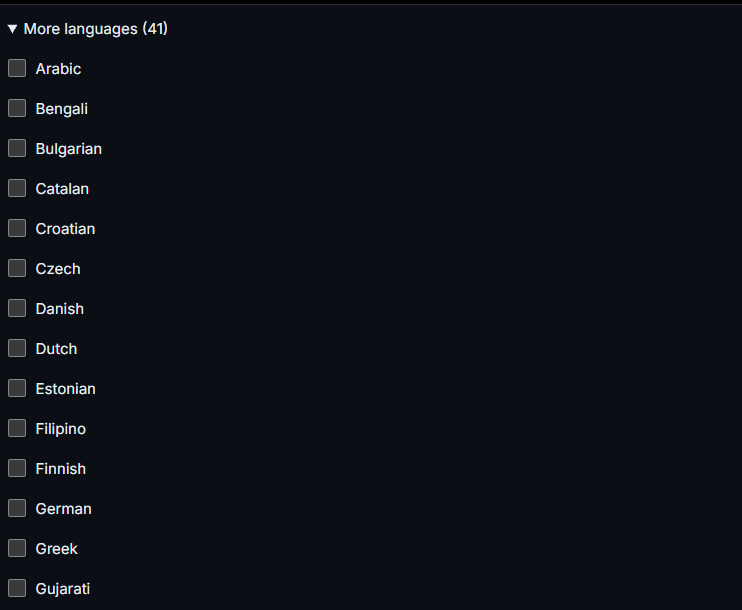
All 51 are the languages Google lets you target, as AdPilot read them from Google on 12 Nov 2026.
If “All languages” is ticked, the campaign targets every language, even if you tick other boxes too. To target only some languages, untick “All languages”.
3. The pre-ticked box: the easiest place to get it wrong
The first time you open a create form, AdPilot ticks the language of the page you’re viewing: “Vietnamese” on the Vietnamese page, “English” on the English page.
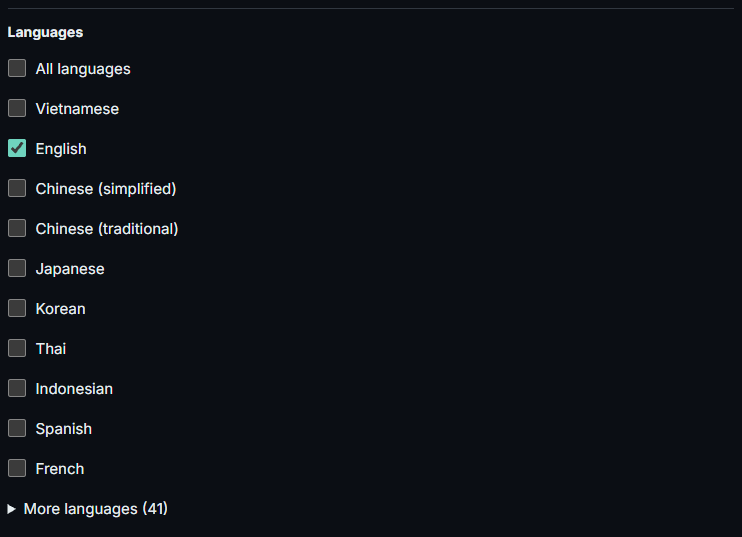
If your customers speak a different language, untick the pre-ticked box and choose again. If you continue with no box ticked, the form says “Select at least one language.”
4. Choosing for each case
- One country, one language: tick just that language. For example, for Thai-speaking customers in Thailand, tick “Thai” and untick the pre-ticked box.
- One country, several languages: tick each language, for example “English” and “Chinese (simplified)”.
- Several countries: languages and places are separate boxes. Places are set in the “Locations” block (Search form, see Location targeting for Search campaigns in AdPilot) or the Country box (the other three types). Each campaign has one list of languages for every place it targets.
5. Check before you build the proposal
The “Summary” panel next to the form and the “Review” page have a “Languages” line: “All languages” (if ticked), then the languages you ticked. If something’s wrong, go back and fix it; if it’s right, click “Build proposal”. As with other changes in AdPilot, the campaign is only created in Google Ads after the proposal is approved and applied (source).
6. Changing the languages of an existing campaign
- On the Campaigns screen, open the campaign’s dot menu and click “Settings”.
- Click the “Languages: …” row. It shows the languages the campaign currently targets, or “All languages”. It opens the same checkboxes as the create form, ticked to match what the campaign targets now.
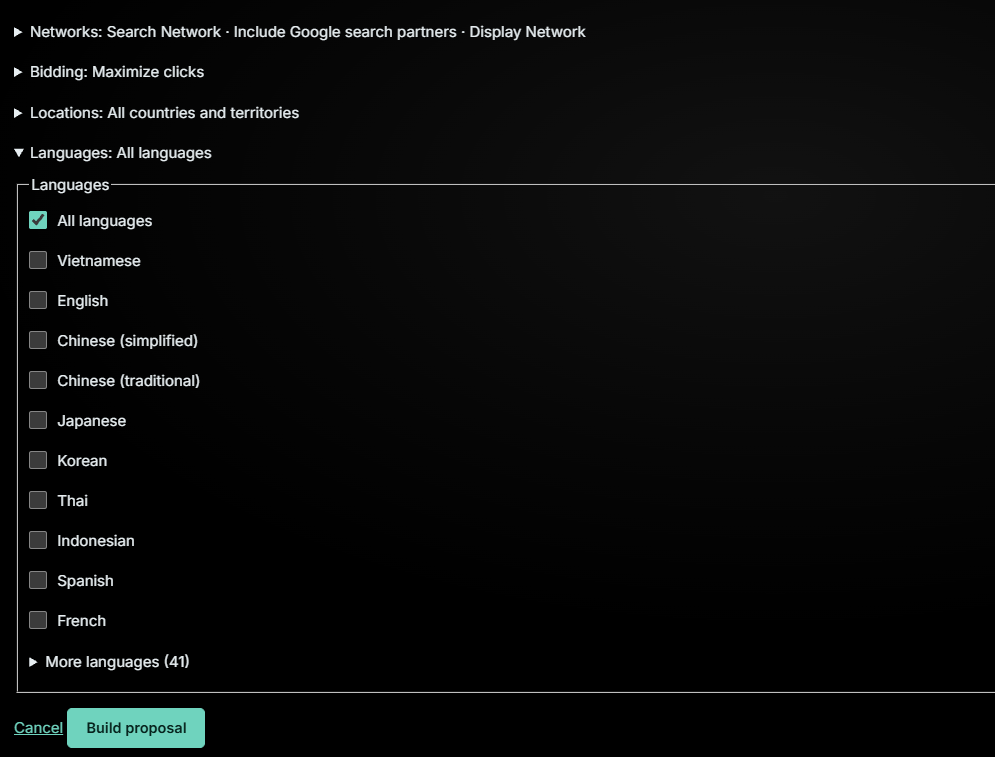
Settings panel: the new list replaces the old one. - Tick the languages you want and click “Build proposal”.
The list you tick replaces the old list; it isn’t added to it. To add one language, keep the current ones ticked and tick the new one as well.
If you untick everything, the page says “Select at least one language.” If you choose “All languages” when the campaign already targets all languages, the page says “Nothing changed.”
7. Common questions
I can’t find the language I need. The box has all 51 languages Google lets you target (read from Google on 12 Nov 2026). If a language isn’t on that list, Google doesn’t let you target it.
Still unsure? Message the support bot privately.