Quick build a campaign from a landing page with AdPilot
Contents
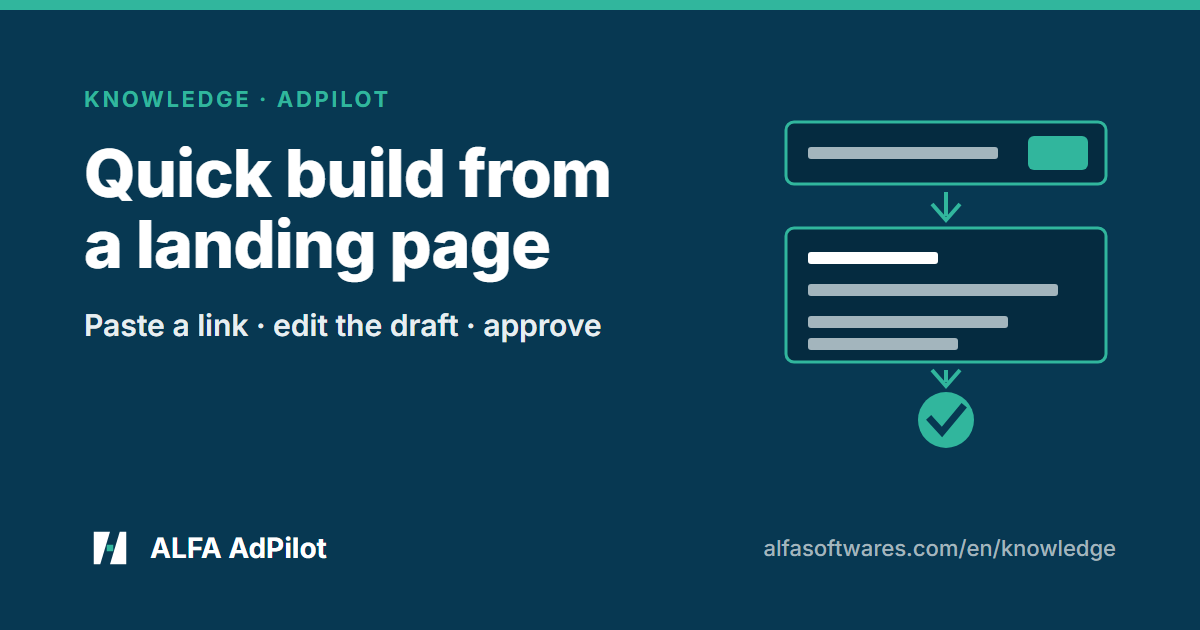
“Quick build” (sub-line “From a landing page”) is a screen in AdPilot for Google Ads. You paste a landing page link, pick a goal and a daily budget; AdPilot reads the page and fills in a draft Search campaign in the campaign builder. You review it, edit any field you need, and only then create the proposal. The screen writes nothing to Google Ads: the campaign is only created, paused, after the proposal goes through the approval gate like any other change (source).
This article describes exactly what the screen does, in the order you meet it: who can use it, where to open it, the four fields, what happens when you click the button, and what comes next.
Before you start
- The organisation has Studio, because each click on “Build campaign” uses one Studio question (see “What each click costs” below).
- The organisation can create proposals. If it is set to view only, the screen says “This organisation is set to view only, so proposals cannot be created yet.”
- At least one Google Ads account is linked. If not, the screen says “No Google Ads account is linked yet.” How to connect and link: Connect Google Ads to AdPilot and pick accounts to manage.
- For now the screen only builds Search campaigns for Google Ads.
Where to open it
There are two ways in:
- “Quick build” in the app’s sidebar, right above “Campaigns”.
- On the Dashboard, the line “Paste a landing page link and AdPilot fills in a draft Search campaign; you review and edit it before you create the proposal.” with a “Quick build” link.
Both only appear when the organisation has Studio and can create proposals.
The four fields
| Field | What to enter |
|---|---|
| Landing page link | Starts with http:// or https://. A wrong format gets “The landing page address is not valid (it must start with http:// or https://).” |
| Goal | Three choices: “Sales”, “Leads”, “Website traffic” (the names Google Ads uses for campaign goals) |
| Ad account | Pick one of the linked accounts |
| Average daily budget | In the currency of the account you picked |
When you click “Build campaign”
- Question check. If the plan’s Studio questions are used up, AdPilot tells you the plan’s questions are used up and stops: it doesn’t read the page and doesn’t call the AI model.
- Reading the page. AdPilot reads the landing page with the same page-reading tool that Studio and Claude use. Reading counts as one tool call, as usual. If the page can’t be read, the screen says why and offers “Open an empty campaign builder” so you can fill it in by hand. AdPilot doesn’t guess what a page says.
- Drafting. The AI model (Studio’s “Fast” level) drafts a campaign name, one ad group, keywords (phrase or exact, never broad by default), and headlines and descriptions for a responsive search ad. The ad text is written in the page’s language; the targeting language defaults to the language of the interface you are using, and you can change it in the builder.
- Line-by-line ad text check. A line that has figures or promises not on the page, financial wording, all-caps words or is too long is dropped, not rewritten. When lines are dropped, the top of the builder says “Removed {n} ad lines that failed the ad text check (…)”. If, after dropping, the draft is below the minimum for a responsive search ad (3 headlines, 2 descriptions), the screen says exactly how many are missing, suggests clicking again or writing your own in the builder, and doesn’t pour in an empty draft.
- Handing over to the builder. The draft is filled into AdPilot’s existing campaign builder, every field editable. The top of the page says “This draft was built by AdPilot from the page’s content, in the page’s language; check each field before you create the proposal.”
Bidding strategy
AdPilot picks the strategy from the account: if a conversion action that is turned on has recorded a conversion in the last 30 days, it picks Maximize conversions; if not, it picks Maximize clicks and the top of the builder says so: “AdPilot hasn’t seen any conversion recorded in the last 30 days, so the bidding strategy is set to Maximize clicks. You can change the strategy in the builder before you create the proposal.” If AdPilot can’t read the conversion data, it treats the account as having none.
What each click costs
- One click on “Build campaign” uses one Studio question. The build appears in your Studio history as “Quick build — {domain}”, so you can look back at that build: the link, the goal and a summary of the draft.
- Reading the page counts as one more tool call.
- If the model fails and no draft comes out, no question is counted; you can still open the builder.
- Clicking again to get another draft is a new click.
After the draft: the proposal and the approval gate
From the builder you do what you do when you create a campaign yourself: review, edit, then create the proposal. From there:
- The campaign is created paused. Turning it on is a separate step.
- Creating the campaign and turning it on both go through the approval gate like any other proposal. Creating the campaign is usually rated low risk because the campaign stays paused; turning it on is a separate proposal rated high risk, and an approver has to click it on the web (source).
- An applied proposal can still be undone the usual way (Undo changes in AdPilot).
Quick build adds no new way to write: it only fills in the builder, and the proposal it produces uses the existing Search campaign creation tool. For who can approve: Approve proposals in AdPilot.
What this screen doesn’t do
- It doesn’t turn a campaign on and doesn’t write straight to Google Ads.
- It doesn’t build Performance Max, Shopping, Display, Demand Gen or Meta campaigns (Meta has no such screen yet).
- It doesn’t guarantee that Google approves the ads or that they perform: AdPilot’s text check only removes lines it recognises; you still check each field.
- It doesn’t replace the builder: you can edit every field, and you can still skip this screen and create the campaign yourself. For keywords and match types: Match type marks when creating a Search campaign.
Checklist
- The organisation has Studio and can create proposals; a Google Ads account is linked
- The landing page link starts with http:// or https:// and opens without a sign-in
- You picked the right goal: Sales, Leads or Website traffic
- You entered the average daily budget
- You read every field of the draft in the builder, including the ad lines and the bidding strategy
- You created the proposal; the campaign stays paused until a separate turn-on proposal is approved
Sources
- ALFA Software — AdPilot for Google Ads: alfasoftwares.com/en/adpilot-google
- ALFA Software — Docs: Approval gate: alfasoftwares.com/en/tai-lieu#cong-duyet